
TestFlight: how to install a VPN app that is not in the App Store yet
If the VPN client you need is still distributed through TestFlight, you can install it by invitation. Your regular Apple Account and a compatible device are enough; a paid developer registration is not required.
This guide walks you through the whole process: you will install TestFlight, open the invitation, download the VPN app, turn on updates, and sort out errors. The main steps are shown for iPhone and iPad; Mac and Apple TV are described separately.
Last updated: October 28, 2026. As of the check date, TestFlight is available in the App Store in version 4.4.1. The screenshots show different interface versions, in Russian and in English. The app name and icon in the examples may differ from your VPN.
Contents
- What TestFlight is and what exactly you need to get
- What you need before you install
- Step 1. Install TestFlight from the App Store
- Step 2. Go through the first launch
- Step 3. Find and open the invitation for your VPN
- Step 4. Accept the invitation and download the VPN
- Step 5. Open the VPN and add your access
- If the invitation came by email or as a separate code
- How to update the VPN through TestFlight
- What the 90-day limit means and how to keep your access
- If the VPN works worse after an update: previous builds
- How to switch to the regular App Store version
- How to stop testing
- Common errors: what the message means and what to do
- TestFlight on Mac
- TestFlight on Apple TV
- How to report a problem if the beta works poorly
- Quick answers to common questions
What TestFlight is and what exactly you need to get
TestFlight is Apple's app for installing test versions of other apps. It lets you get a VPN client before its regular App Store release, if the developer has opened the app for testing.
A beta version means the app is still being tested. It may get new features, and sometimes bugs. For you, the installation looks familiar: an app icon appears that you can open from the Home Screen.
TestFlight shows the apps that you have been given access to test. Even if the interface has a search field, it does not replace an invitation to a new beta. There is no need to search it for every existing VPN the way you would in the open App Store catalog.
Before you start, it is important to tell three things apart:
| What | What it is for | Where it is used |
|---|---|---|
| The TestFlight app | Installs and updates beta versions | Downloaded from the App Store |
| A TestFlight invitation | Gives access to download a specific VPN client | Opened in the browser and in TestFlight |
| A VPN subscription link or a service account | Gives access to the servers | Added inside the installed VPN app |
TestFlight is free. A free installer does not determine the price of the VPN service: access to the servers and the plan terms depend on your provider.
What you need before you install
Get ready:
- the device you want to install the VPN on;
- your own Apple Account with access to the App Store;
- a regular internet connection;
- free storage for TestFlight and for the VPN app itself;
- a current beta invitation for the client you need;
- your VPN subscription details, if that client requires them.
Which devices are supported
| Device | TestFlight's own requirement as of the check date | Additional condition |
|---|---|---|
| iPhone | iOS 16 or later | The VPN must have an available compatible iOS build |
| iPad | iPadOS 16 or later | Installation on iPad must be supported |
| Mac | macOS 13 or later | The VPN must have an available build compatible with your Mac |
| Apple TV | tvOS 18 or later | A tvOS build of the VPN is required |
The VPN itself may have higher requirements. For example, being able to install TestFlight on iOS 16 does not guarantee that you can install a client that needs iOS 18.
You can check the system version on iPhone or iPad in Settings → General → About. To see whether an update is available, go to Settings → General → Software Update.
This guide does not install a beta version of iOS on your device: TestFlight gives you a beta version of an app. Apple has no TestFlight app for Android or Windows; there, use the download method provided by the VPN client itself.
Do you need a different App Store region
Start with your regular account: TestFlight has a page in the Russian App Store. Changing the region just because the VPN is not yet published in the store is usually unnecessary, because access to the beta is opened by an invitation.
If it is the App Store itself that says the app is unavailable for your account, check the text of the error and the store region. The steps for changing the region are covered in a separate guide.1 The terms of taking part in a particular beta, its compatibility, and whether spots are available are checked separately.
Step 1. Install TestFlight from the App Store
- On your iPhone or iPad, open the App Store.
- Search for TestFlight or open the official TestFlight page.
- Check that the name is TestFlight and the developer is Apple.
- Tap Get. If you have downloaded the app before, you may see a cloud icon with an arrow instead.
- Confirm the download the way you usually do on your device: Face ID, Touch ID, or your Apple Account password if the system asks for it.
- Wait for the installation to finish.
- Tap Open.
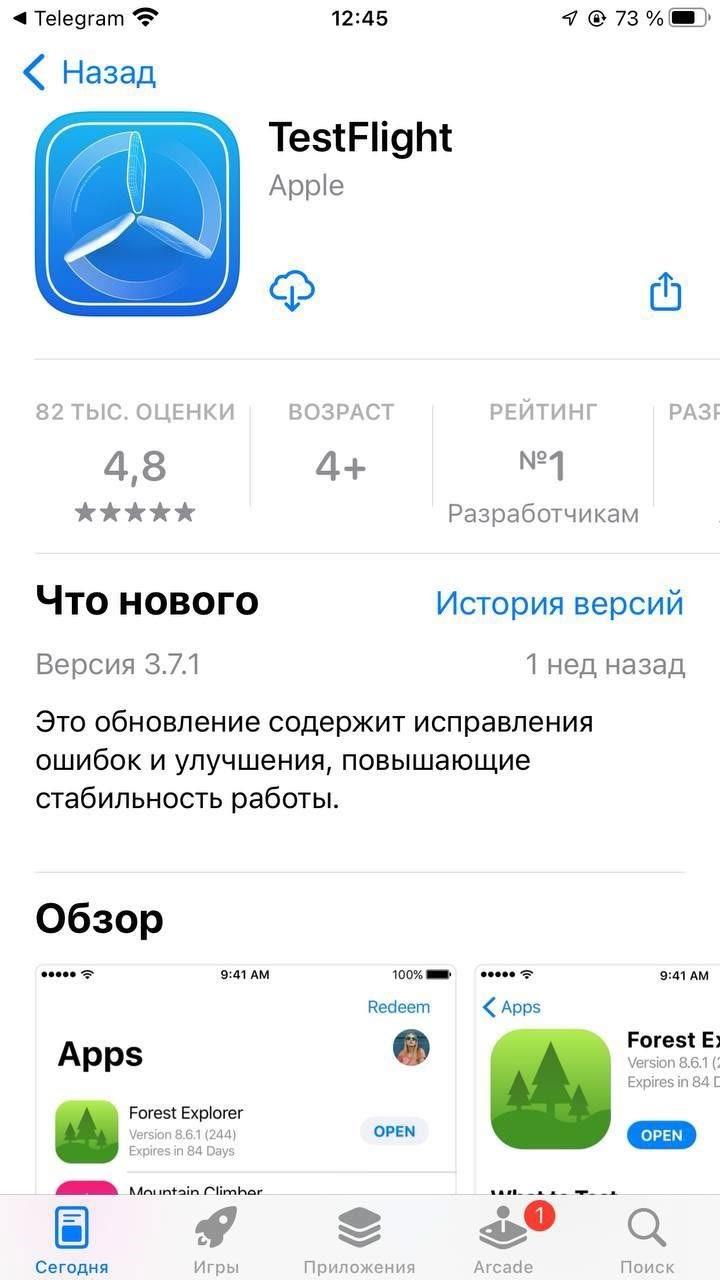
If the App Store asks you to sign in to your Apple Account, use your regular account, the one you download apps with.
If the button already says Open instead of Get, TestFlight is installed, so go on to the next step. There is no need to download it again.
Step 2. Go through the first launch
When you open TestFlight for the first time, it may show a welcome screen and the terms of use.
- Read the welcome screen.
- Tap Continue.
- If the terms of use are shown separately, read them and confirm to continue.
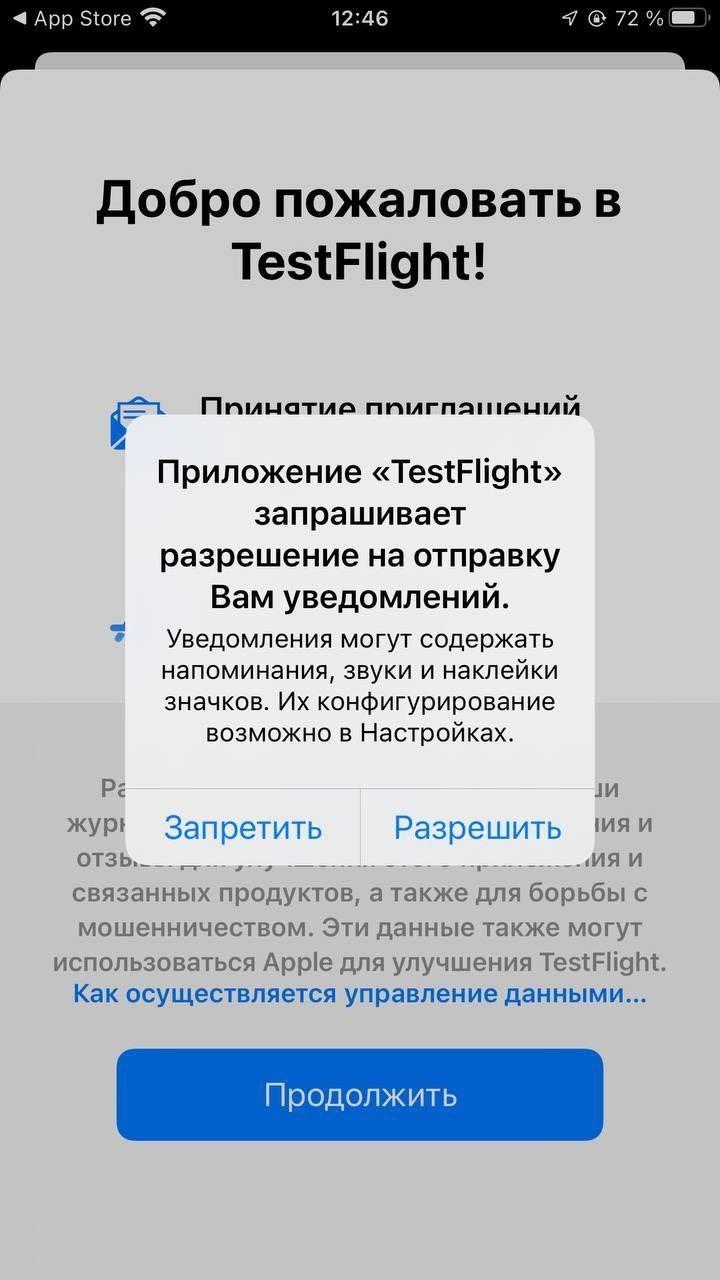
- If a notification prompt appears, choose the option that suits you.
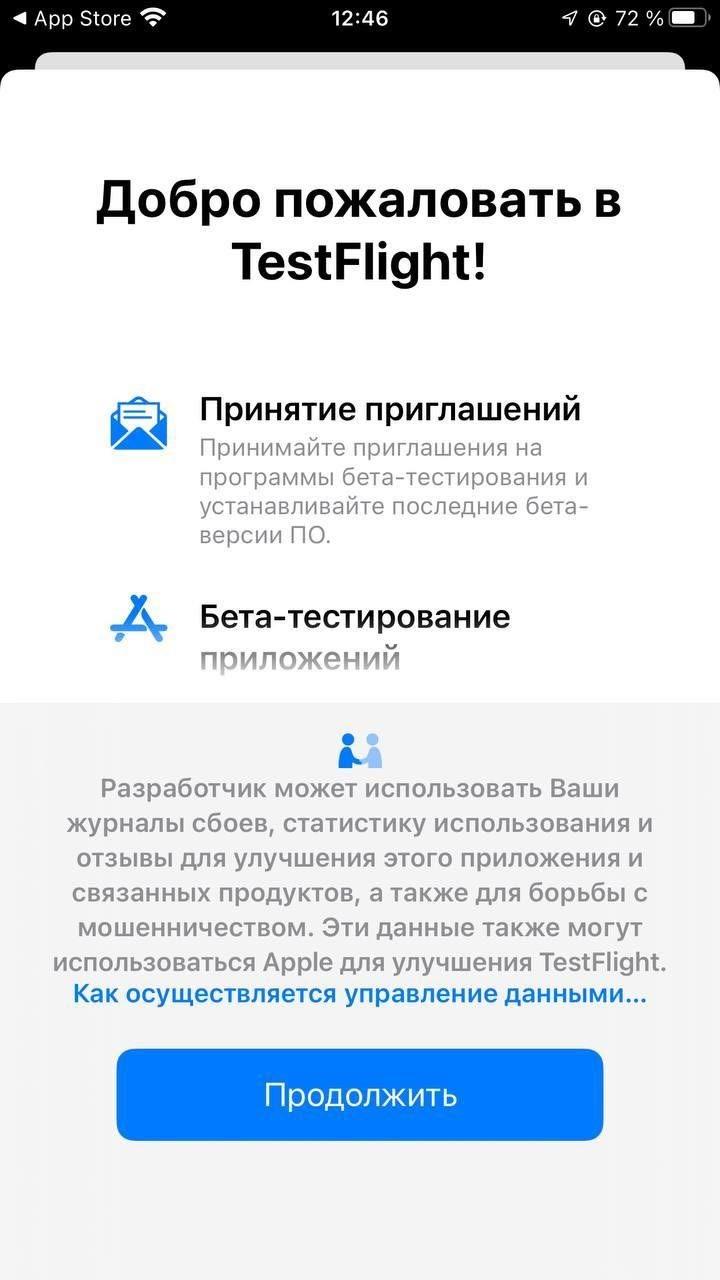
Notifications are useful: TestFlight uses them to tell you about new beta builds. If you deny notifications, you can still install and update apps manually, but you will have to check for updates yourself.
After the first launch, the list may be empty. That is normal: installing TestFlight has not yet added a VPN app to it. Now you need to go back to the invitation.
Step 3. Find and open the invitation for your VPN
The invitation is issued by the developer of the VPN client or by the service that distributes this client. It is usually found on the official download page, in the service's instructions, or in an invitation email.
The link often looks like this:
https://testflight.apple.com/join/XXXXXXXX
If the link came in Telegram or another messenger
- Open the message with the invitation on the iPhone or iPad where you are installing the VPN.
- Tap the link.
- If the built-in browser gets in the way, open its menu and choose Open in Safari, or copy the address into Safari.
- On the invitation page, find the button that takes you to testing: Start Testing, View in TestFlight, or a similar one.
- Confirm opening TestFlight if iOS asks.
If the invitation is open on a computer but you need the VPN on your phone, send the link to yourself and open it on the phone. Installing TestFlight on a computer alone will not install the app on your iPhone automatically.
If the page first offers to download TestFlight
The invitation web page may have two stages:
- Get TestFlight: goes to the App Store.
- Join the Beta: opens the specific beta.
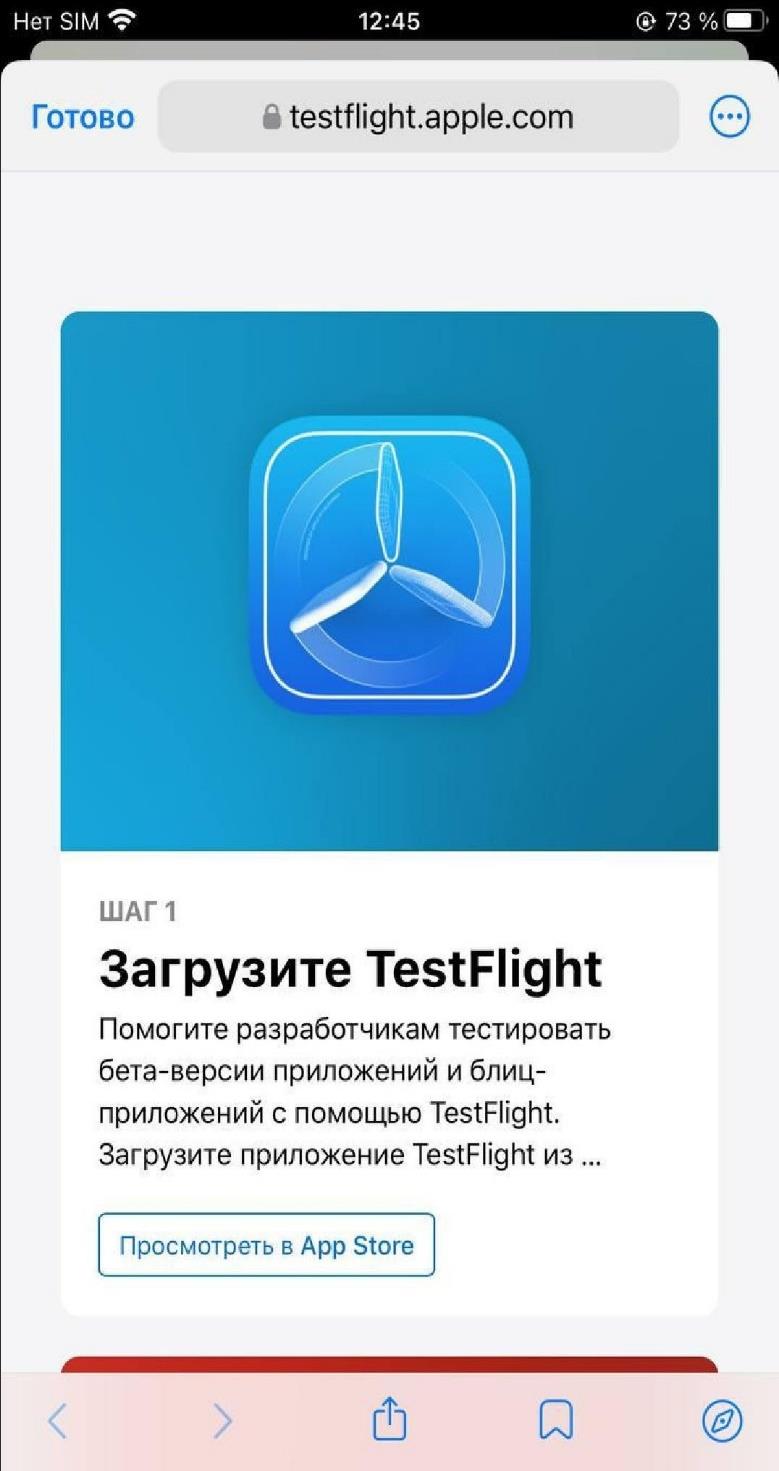
If TestFlight is already installed, do not repeat the first stage in circles. Go back in your browser to the original invitation link, open it again, and choose the option to go to the beta.
Simply opening an empty TestFlight after downloading it from the store is not enough: it still has to receive the invitation for the app you need.
Step 4. Accept the invitation and download the VPN
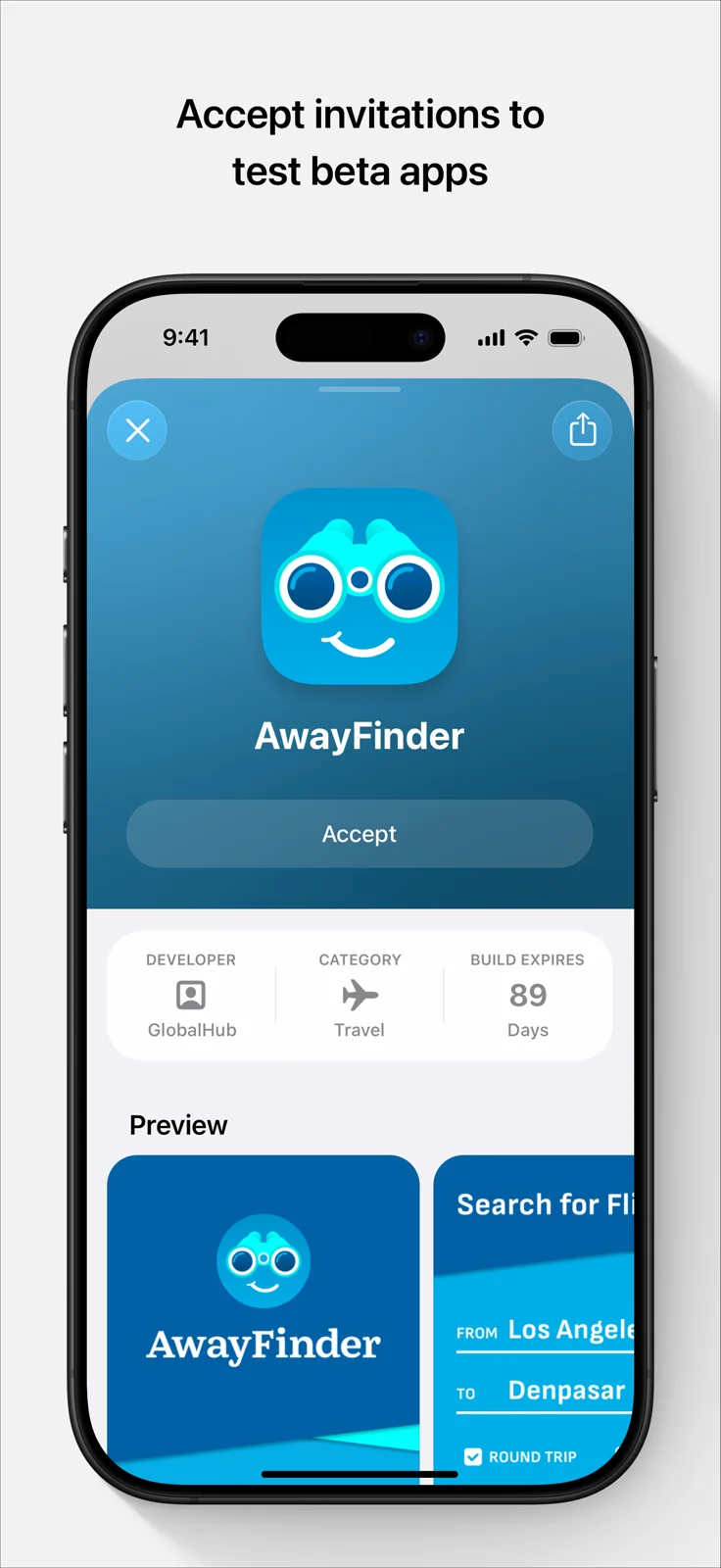
The app page opens in TestFlight. Check its name, icon, and description: they should match the client you chose.
- Tap Accept if this button is shown.
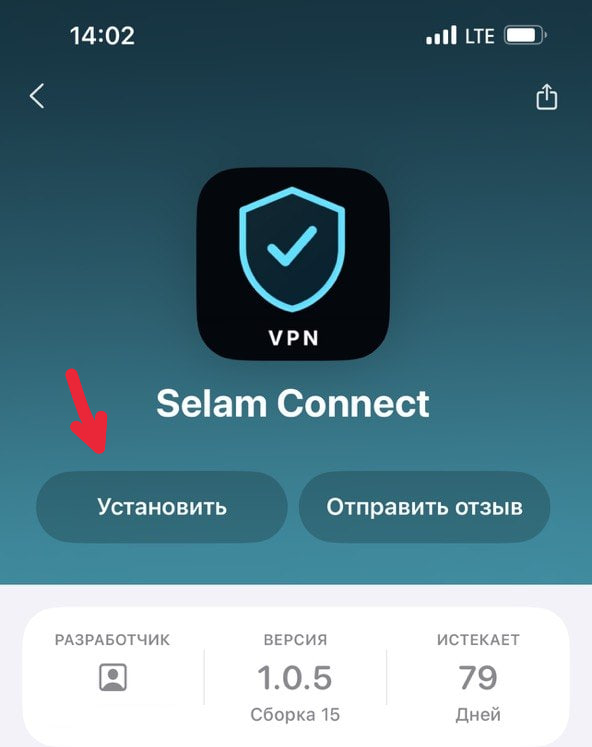
- After accepting, tap Install.
- Wait for the app to download.
- When Open appears, tap it.
In some cases, a compatible build offers Install right away. If you have already taken part in the beta, you may see Update or Open instead of accepting the invitation. A missing separate Accept button is not an error in that case.
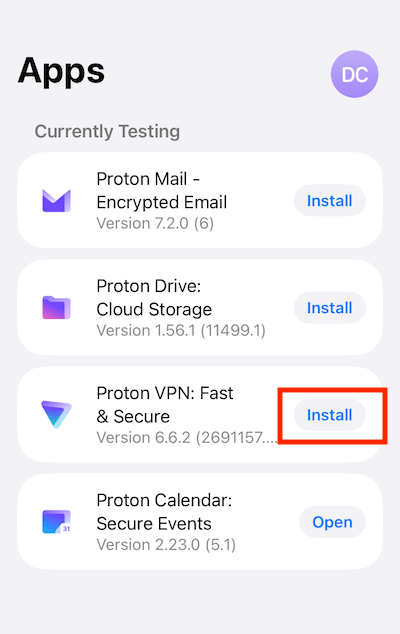
The app may also appear in the general TestFlight list. In that case, tap Install next to the line you need, or open its app page.
If this app is already on your device from the App Store
For the first installation of a new client, this point usually needs no extra action: just get the app and then set up your access.
Step 5. Open the VPN and add your access
After installation, the VPN appears as a regular app. You can open it:
- with the Open button in TestFlight;
- from its icon on the Home Screen;
- from the App Library or system search, if the icon did not end up on a visible page.
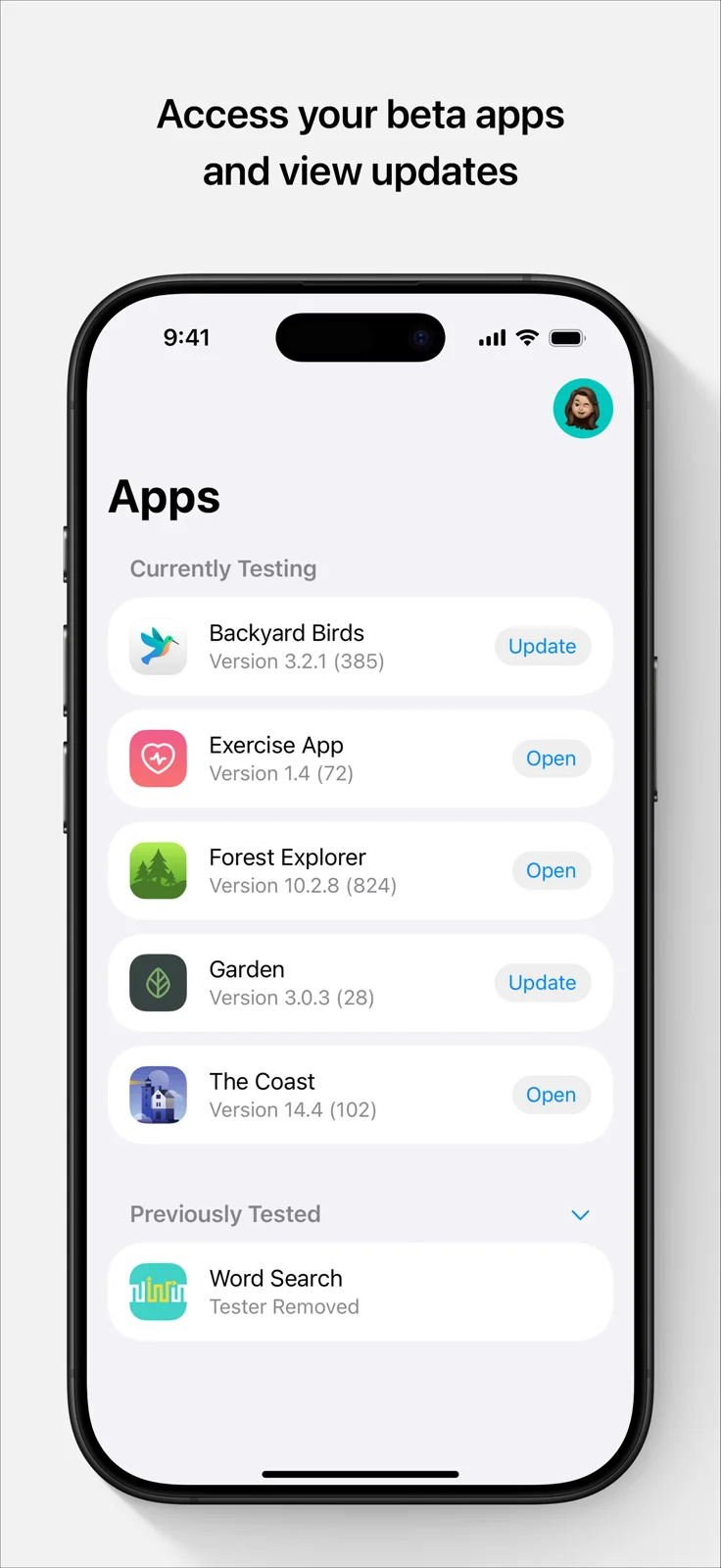
A beta app may have an orange dot next to its name. This is a mark of a test version, not a message that the VPN is faulty.
What to do inside the VPN client
- Go through its initial setup.
- Sign in to your VPN account or add the subscription link issued by your service, depending on the app you chose.
- Wait for the servers to appear.
- Choose a server and tap connect.
- If iOS asks for permission to add a VPN configuration, tap Allow and confirm the action on your device.
- Open the website or app you need and check the connection.
For a client with subscription import, use the VPN subscription link, not the TestFlight invitation address.
Not every VPN client accepts subscriptions from third-party services. For 4TO access, choose a compatible app and a suitable import format. The VPN names in this article's screenshots show how TestFlight works; they are not a list of what is compatible with 4TO.
Further setup of the subscription and routing is covered in detail in the guides for Karing, Happ, and INCY.234
TestFlight itself has no button for connecting to your VPN servers. At this stage, its job is installing and updating the client.
If the invitation came by email or as a separate code
An invitation in an email
- Open the email on the device where TestFlight is installed.
- Tap View in TestFlight.
- Allow the switch to the app.
- Accept the invitation and install a compatible build.
The address the email was sent to does not have to match the address of your current Apple Account. TestFlight lets you accept invitations with your current account; there is a hint about this in its settings. Look for access you have already accepted under the account you used to join the beta.
A separate invitation code
If the developer really did give you a code:
- Open TestFlight.
- Tap the profile icon (Settings) in the top right.
- Find Redeem Invite or another option for entering a code. In earlier versions it may be called Redeem.
- Enter the code from the invitation.
- Continue installing the app.
This is the invitation code from the developer, not your iPhone passcode and not an Apple Account two-factor authentication code.
An ordinary public /join/... link usually needs no separate code. If TestFlight asks you to enter one, first open the original link in Safari again: the invitation may simply not have been passed to the app.
How to update the VPN through TestFlight
Beta versions are updated through TestFlight. Updating TestFlight itself through the App Store is a separate action.
Update the VPN manually
- Open TestFlight.
- Find the VPN app you need in the list.
- If there is an Update button next to it, tap it.
- Wait for the installation to finish.
- Open the VPN and check your subscription, the selected server, and the connection.
If Open is shown instead of an update, no new build is currently offered to you. This is not a promise that the current build will work indefinitely: check its expiration separately.
After an update, you may need to reconnect the VPN. Before an important call or download, keep in mind that installing a new version can interrupt the app.
Turn on automatic updates for a specific VPN
- In TestFlight, open the app page of the VPN you need; do not launch the VPN itself.
- Scroll down to the app information or settings section.
- Find Automatic Updates.
- Turn on the switch.
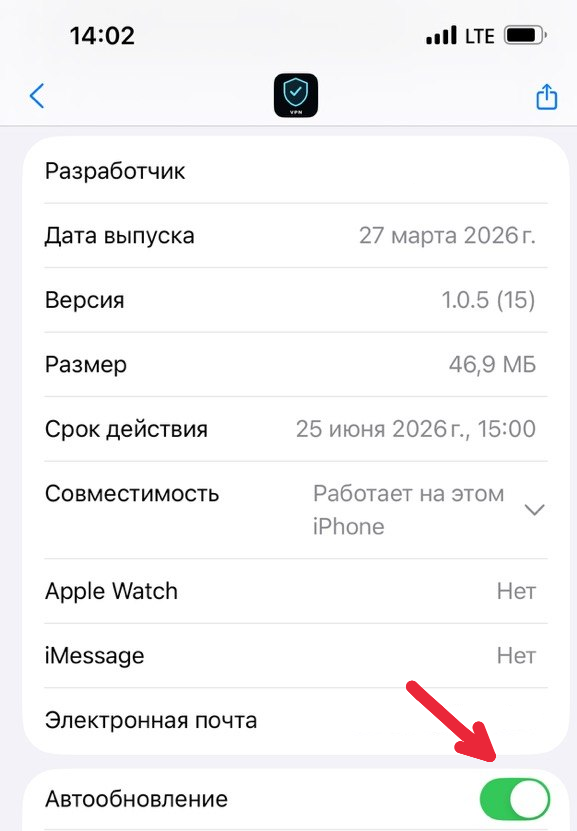
If the list shows an Open button on the right, tap the app icon or name to get to its app page. Tapping the Open button itself launches the VPN and does not show the TestFlight settings.
Set up automatic updates for new apps
TestFlight also has a general default setting:
- Open TestFlight.
- Tap the profile icon (Settings) in the top right.
- Open Automatic Updates for New Apps.
- Turn on automatic updates.
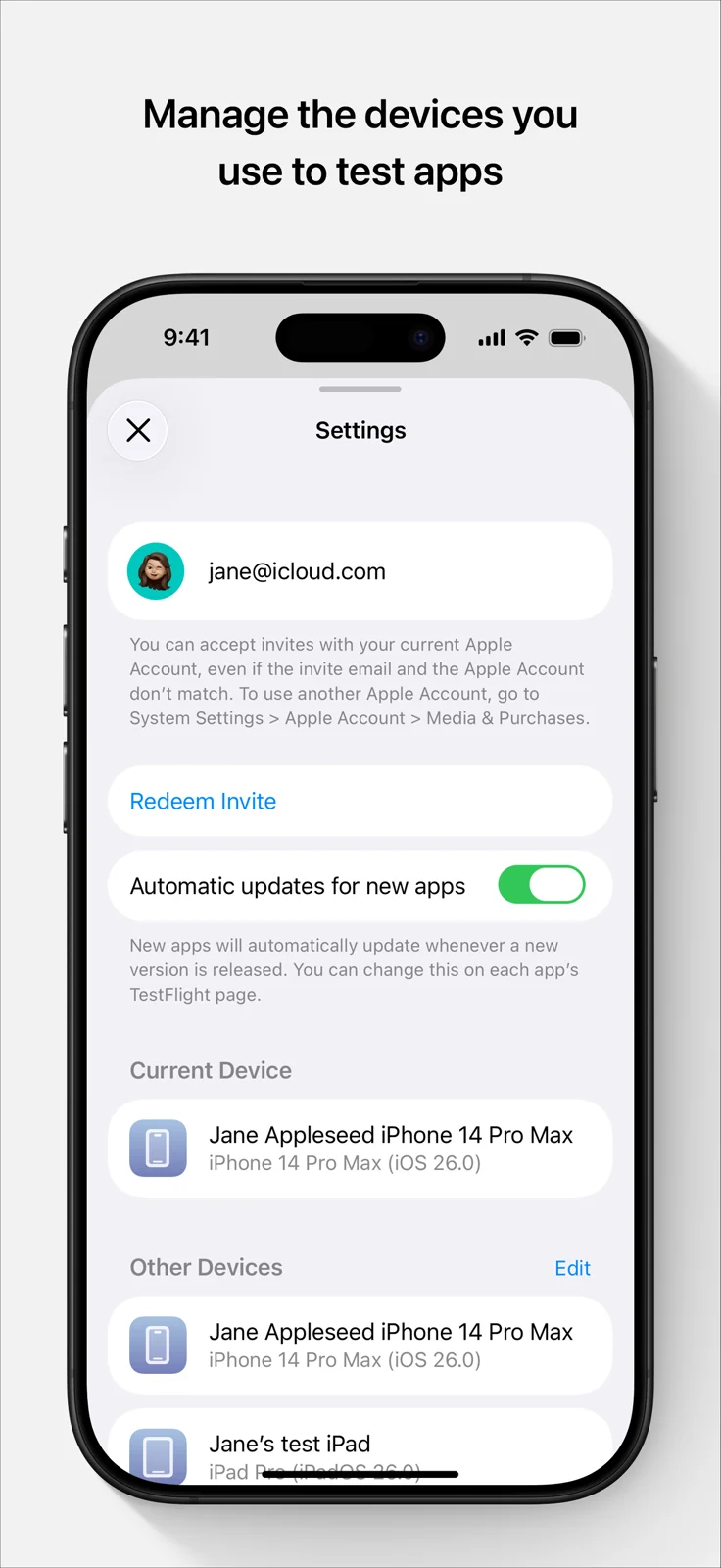
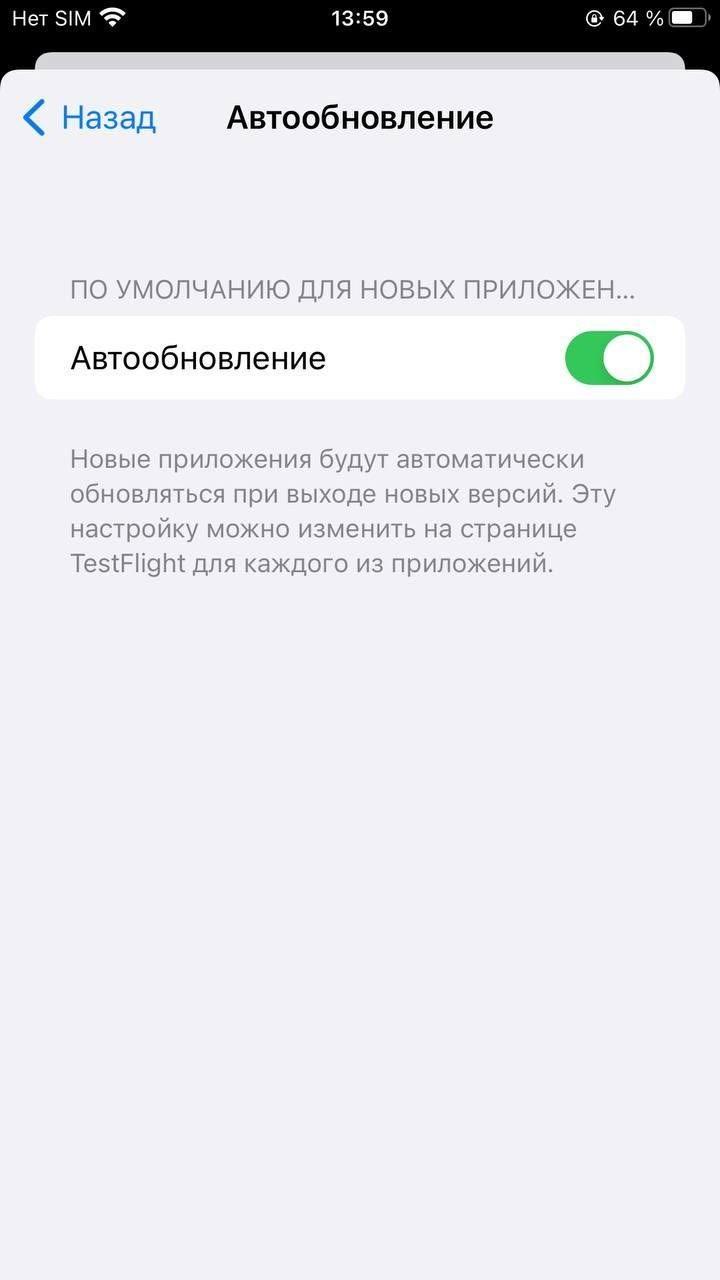
The general switch and the setting for a specific VPN are different levels. For an app you have already added, check its own Automatic Updates setting, especially if you turned it off manually before.
Automatic updates help you receive new published builds. They do not create a new version if the developer has not released one yet. Open TestFlight from time to time and check the status of the VPN you need yourself.
What the 90-day limit means and how to keep your access
Every beta build has a limited validity period: up to 90 days from the moment the developer uploaded it to TestFlight. It is not 90 days from your first launch.
For example, if a build was uploaded about 60 days ago, you may have about 30 days left after installing it. So 79, 20, or 5 days under the app do not by themselves mean an error.
The period is shown on the app page: look for Expires or Expires in … days. Depending on the layout, TestFlight shows either the days remaining or an exact date.
When the limit is approaching
- Open TestFlight and check for a VPN update.
- Install the new available build.
- Look at its validity period again.
- If there is no new build, ask the developer or your service when one will appear and which client is available as a replacement.
A new build has its own period, counted from when it was uploaded. Even an update that is new to you will not necessarily give you a full 90 days if it was published earlier.
When the build has already expired
After the test period ends, this beta build stops launching. TestFlight may show the message Expired.
Open TestFlight and install a new valid build, if one is available. If there is none, you cannot extend the old build from your phone: you will need a new version from the developer or an available regular release.
Reinstalling the same build does not restart the period. Buying or renewing a VPN plan also does not change the TestFlight build's period.
If the VPN works worse after an update: previous builds
In TestFlight, you can sometimes install another build of this app that is still available.
- Save the subscription link and a backup of the client's settings, if it supports one.
- Open the VPN's app page in TestFlight.
- Find Previous Builds or View Previous Builds. For some apps the section is called Versions and Build Groups.
- Look at the available options and the change notes.
- Choose the compatible build you need and tap Install.
- Check that the VPN launches and connects.
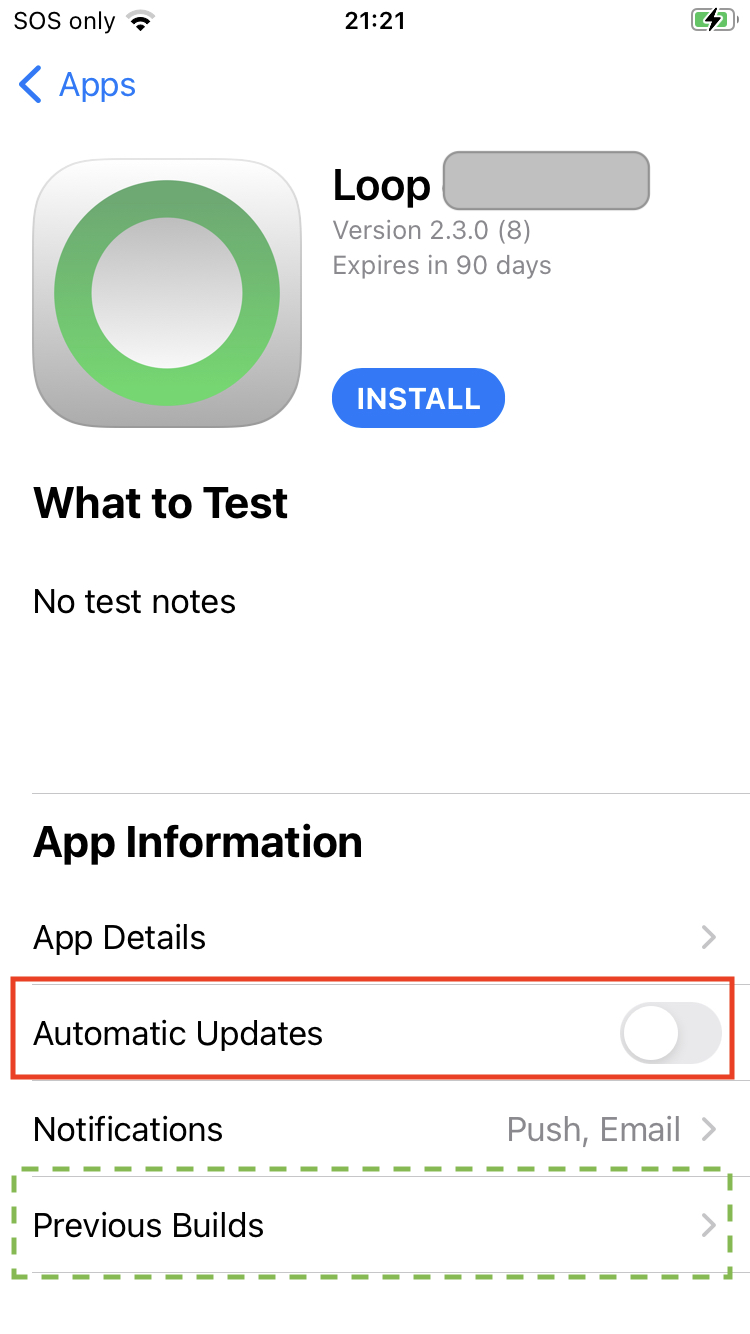
The build you choose will replace the installed one. The list contains only the versions that are available to you and your device: TestFlight does not provide an arbitrary archive of all releases.
How to switch to the regular App Store version
If the VPN later appears in the App Store, switch to the regular version through the App Store page of the VPN itself, not through a TestFlight update.
- Save your access details and a backup of the settings.
- Open the official App Store page of this VPN.
- Install or update the app in the way the store offers.
- Confirm the replacement if the system offers it.
- Open the client and check your subscription and connection.
A beta does not turn into the regular release automatically just because the release has been published. For the same app, the store version replaces the existing installation; a client with a different name or identifier may be installed separately.
If the regular version is not in the App Store yet, you cannot switch to it for now. Keep receiving valid beta builds, or choose another compatible client from your service.
How to stop testing
If you no longer want to receive beta versions:
- Open TestFlight.
- Go to the app page.
- Find Stop Testing, usually in the lower part of the app information.
- Tap it and confirm that you want to leave.
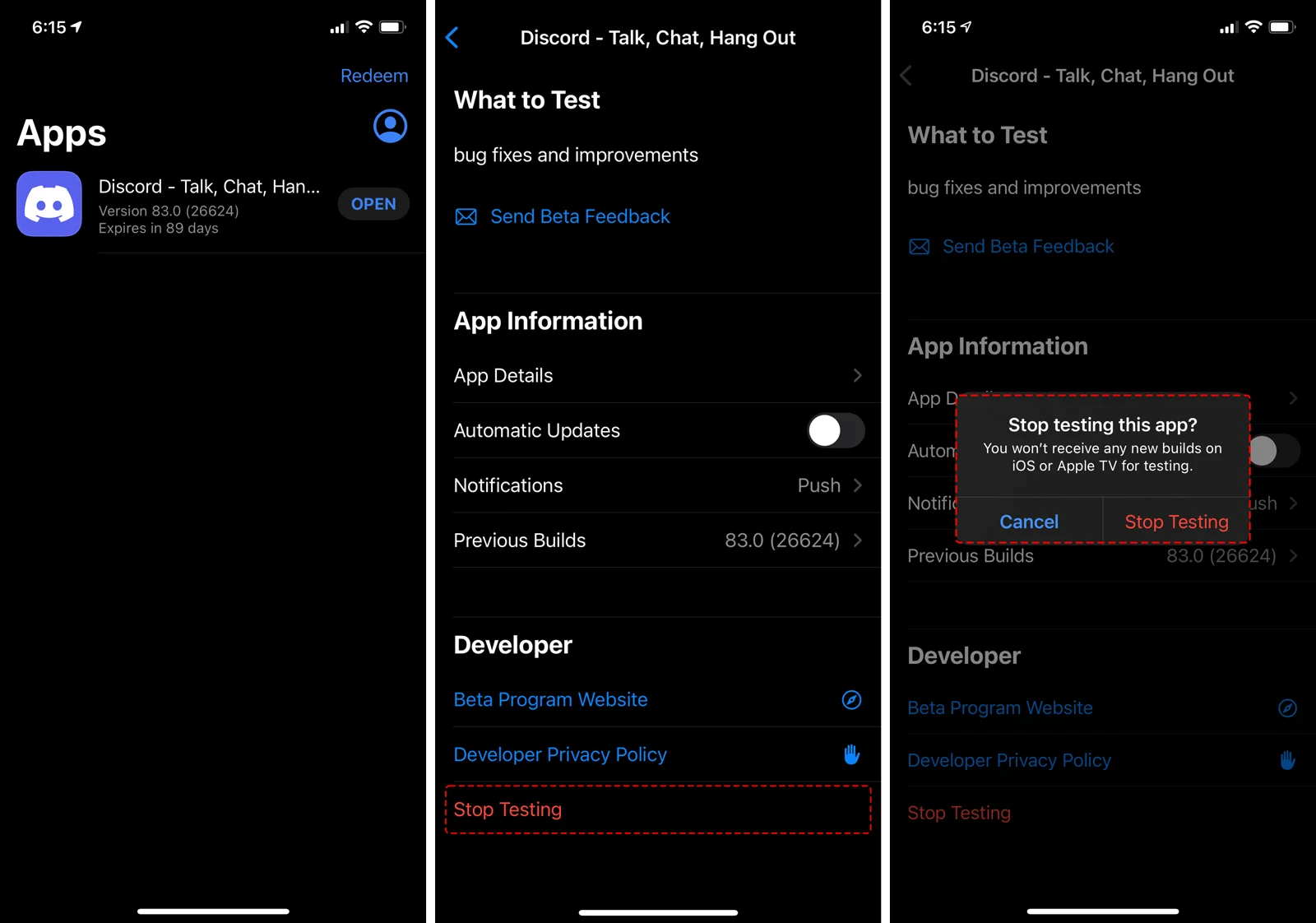
After that, you will stop receiving new builds of this app as a tester. Coming back may require accepting the invitation again, and open spots are not guaranteed.
Deleting the VPN app from your phone, stopping testing, and cancelling a paid VPN subscription are different actions. If you have paid access through a service, its terms are managed separately.
Common errors: what the message means and what to do
| What you see | What it usually means | First step |
|---|---|---|
| Ready to Test, an empty list, No Apps Available | TestFlight is installed, but no invitation has been accepted | Open the original invitation link again |
| Redeem | The invitation entry screen is open | For a public link, go back to /join/...; take a separate code only from an invitation |
| This beta is full | There are no open spots in this beta right now | Check for a current invitation and your service's announcements |
| Not accepting new testers | Enrollment of new testers has been stopped | Wait for it to reopen or for another official option |
| Beta not available / No builds available | There is no build available to you | Confirm that the link is current and the version is available |
| Expired | The installed build has passed its validity period | Find a new valid build |
| Your device does not meet the requirements | The device or the system version does not fit | Open the beta's requirements and compare them with your device |
| Install can be tapped, but the download does not start | There may be a problem with the network, storage space, or the download service | Check your internet connection and free storage |
| The app installed, but the VPN does not connect | Installation is complete; the problem is now in the client, your access, or the network | Check your subscription and the connection inside the VPN |
TestFlight is empty and asks for a code
This is common after the first installation.
- Leave TestFlight installed.
- Go back to the message or page where you were given the invitation.
- Open that link in Safari on the device you need.
- Tap the option to go to testing and allow TestFlight to open.
- Check whether the app page for your VPN has appeared.

If you do not have an invitation, get one from the client's developer or from your service. A random set of characters or a VPN subscription link does not replace a TestFlight invitation.
The link leads to the App Store again even though TestFlight is already installed
Check which button you are tapping. View in App Store opens the installer's page. To add the beta, you need the next stage of the page: Start Testing, or opening the invitation in TestFlight.
After the first installation, go back to the original invitation. If you opened it in a messenger's built-in window, move the same full URL into Safari and repeat the step.
“This beta is full” or enrollment is closed
The number of spots is limited, and the developer can pause enrollment. This is a limit on access to testing, not a message about your internet speed or about whether your phone is working.
Check that you are using the current link from your service's instructions. If it is current, all that remains is to wait for a free spot, for enrollment to reopen, or for another official group. Reinstalling TestFlight does not free up a spot in a closed beta.
If you have taken part before, open TestFlight with the Apple Account you used to accept the invitation and check the app you already have. A message that enrollment is full for new testers does not replace checking the access you were already given.
The invitation is invalid or no build is available
The developer may have changed the link, stopped testing, or not yet uploaded a suitable build. Open the current download page of your client or ask support for the right address.
If the message is about compatibility, tap Learn More and check the requirements. If it is about closed enrollment, look for information about access to the beta. These are different causes, and changing the App Store region does not remove them automatically.
The device is not supported
Compare the requirements of TestFlight and of the specific VPN. The second app may require a newer system, or may be distributed only for a certain platform.
If iOS can be updated to the required version, consider a regular system update. If your device does not support it, ask your service for a compatible client. The iPhone model name alone is not a substitute for checking the iOS version.
The download hangs or “Unable to Install” appears
Check the following in order:
- Does an ordinary website open, and does the App Store work?
- Is there free space in Settings → General → iPhone Storage (or iPad Storage)?
- Does the app page say that the build has expired or is unavailable?
- Does the result change on another available network?
- Does opening TestFlight again or restarting the device help?
- Is installing apps blocked by a system restriction in Screen Time or in the settings of a work-managed device?
If the error repeats, save its exact text. Do not start by deleting a working VPN and its settings: if the problem is on the download side, this can only leave you without a working client.
TestFlight does not show the promised update
An update has to be published and made available to your group and your device. A message about a new version in your service's chat does not always mean that it is already available to every tester.
Open the VPN's app page manually and check the available builds and the current link. If an update is announced as available but is not there, tell support the version of the installed client, your system version, and what TestFlight shows.
Updating TestFlight itself from the App Store does not replace the release of a new VPN beta build.
The VPN installed but does not connect
If TestFlight already shows Open and the client launches, first check:
- whether your access has been added inside the VPN;
- whether the VPN subscription is active;
- whether working servers have appeared;
- whether the system permission for VPN has been granted;
- whether another server and another network work.
After that, use the instructions for the client you chose.234 Removing TestFlight does not fix an incorrect subscription link or an unavailable VPN server.
TestFlight on Mac
On Mac, the process is similar to iPhone, but the invitation and the build must support your Mac.
- Install TestFlight from the Mac App Store on a Mac with macOS 13 or later.
- Open the invitation for your VPN on the Mac itself.
- Allow the browser to switch to TestFlight.
- Click Accept if it is shown, then Install.
- Open the installed VPN and set up your access.
- Approve the VPN's own system prompts related to the connection or the network extension.
An invitation to an iOS-only beta does not mean you can get a Mac version through it. Check the listed platforms and compatibility.
For automatic updates, open the app page in TestFlight and check Automatic Updates in the app's settings. The general setting for new apps is in the TestFlight → Settings… menu.
The build's validity period, updates, and access to previous versions work on the same logic: what matters is the valid build available to you.
TestFlight on Apple TV
For a TV you need the tvOS version of the VPN, and for TestFlight you need an Apple TV with tvOS 18 or later.
Through a public link
- Install TestFlight on your iPhone or iPad and on your Apple TV.
- Make sure both devices use the same Apple Account for the App Store.
- On your iPhone or iPad, open the VPN's public invitation.
- Accept the invitation.
- Open TestFlight on your Apple TV.
- If a compatible tvOS build is available for your group, install it.
- Open the VPN on the TV and complete its own setup.
Through an email invitation
- Install TestFlight on your Apple TV.
- Open the email on your phone or computer.
- Tap View in TestFlight. For a tvOS invitation, a page with an activation code may open.
- On the Apple TV, open Redeem.
- Enter the code from the invitation and continue the installation.
If the app is not in the list on the TV, first check the App Store account and whether a tvOS build exists at all. Installing the VPN on your iPhone does not transfer its subscription and settings to Apple TV: the transfer is done with the tools of the client you chose.
How to report a problem if the beta works poorly
An ordinary user does not need to write a technical report of several pages. A reproducible description is enough:
- What action you took.
- What you expected to see.
- What happened instead.
- The VPN version and the build number from TestFlight.
- The device, the system version, and the type of network.
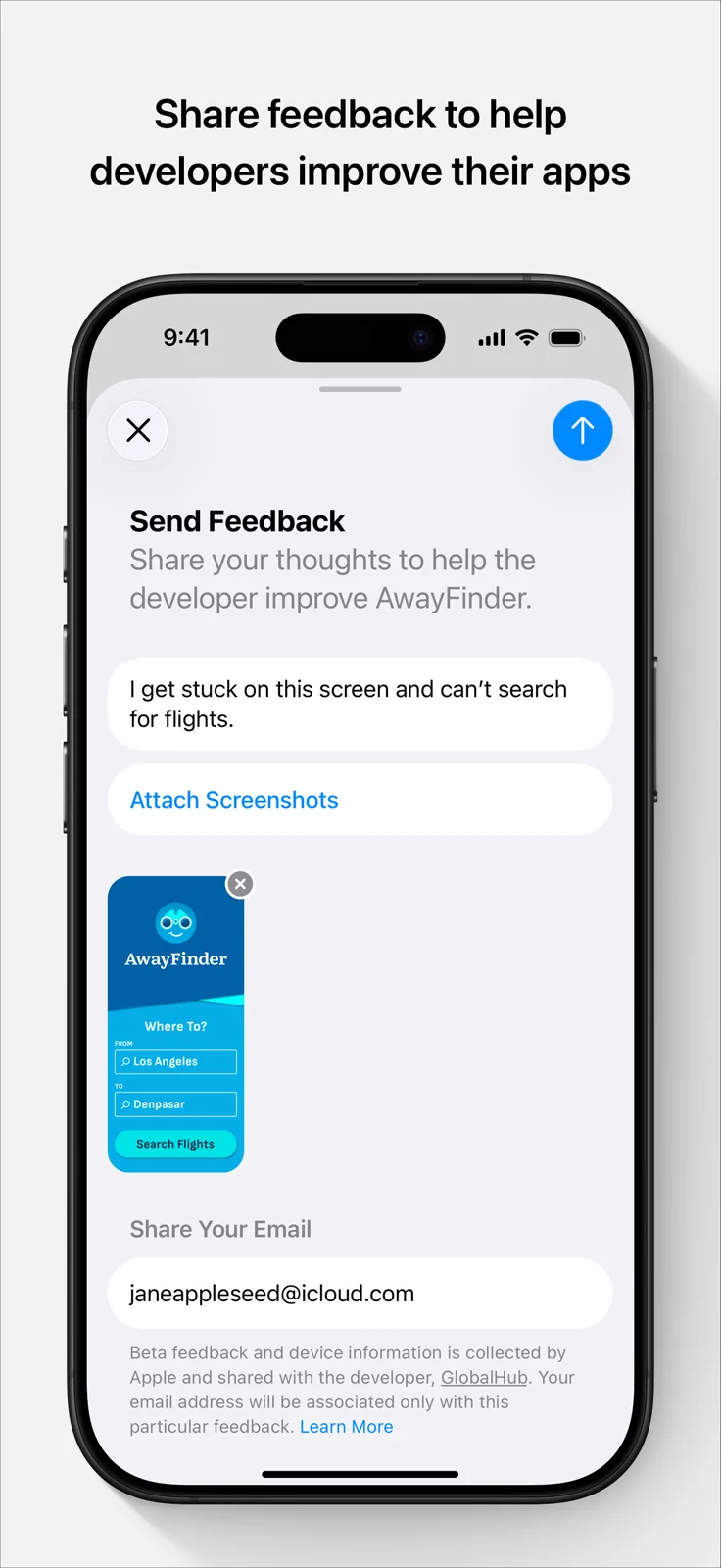
To send feedback through TestFlight, open the app page and tap Send Beta Feedback. Add a description and, if needed, a screenshot. If the app crashed, it may also offer to send details about the crash.
Quick answers to common questions
Do I have to be a developer? No. For a user installation by invitation, a regular Apple Account and a compatible device are enough.
Do I need to turn on “Developer Mode”? Not for a regular installation through TestFlight. It is a separate mechanism that is not required to accept a beta invitation.
Do I need to install a beta version of iOS? No. Check the required system version, but TestFlight installs beta apps, not a beta version of iOS.
Can I download an app that is not in the regular App Store? Yes, if the developer has given you an available compatible beta build through TestFlight. You need its invitation link.
I installed TestFlight, so why has the VPN not appeared? Only Apple's tool is installed. Now open the invitation for your specific VPN and tap install on its app page.
What do I enter in the code field? Only the invitation code, if you were really given one. For a public link, it is usually enough to open it on the device.
Is the orange dot next to the VPN an error? No. It marks that a beta version is installed.
Do I need to open TestFlight before every connection? No. The VPN launches from its own icon like a regular app. TestFlight is needed to manage its test builds.
Can I keep TestFlight on my phone? Yes. It makes it easier to get updates and check the validity period of the VPN build.
Does automatic updating guarantee that the VPN will never expire? No. The developer must provide a new valid build in time.
Can I extend an old build by reinstalling it? No. The period is determined by the uploaded build, not by the date it was installed on your phone.
If the 90 days have run out, has the VPN subscription expired too? These are independent terms. Check the status of your access with your service and install a valid compatible client.
-
Changing the App Store region: steps for cases where the app is really unavailable in the current store. ↩︎
-
Detailed Karing guide: subscription, HWID, servers, rules, and backups. ↩︎ ↩︎
-
Detailed Happ guide: adding a subscription and setting up the connection. ↩︎ ↩︎
-
Detailed INCY guide: installation, subscription, and working with the client. ↩︎ ↩︎